CONGRATULATIONS on your decision! We just received your request!
Your access to the "Reprogrammed Mindset Course + Bonuses" will be sent to your email as soon as your payment is confirmed.
If you paid by credit card, it shouldn't take more than a few minutes. If you paid via boleto, it can take up to two days for the bank to confirm the payment. You'll receive a message in your inbox with the subject "Welcome Message Title" as soon as everything is approved. If you encounter any difficulties, please contact our support team at contato@mindsetreprogramado.com.
Learn how to access your course. Reprogrammed Mindset
Accessing your Account
If this is your first time accessing the platform, you will need to follow some of the steps listed below.
Step number 1:
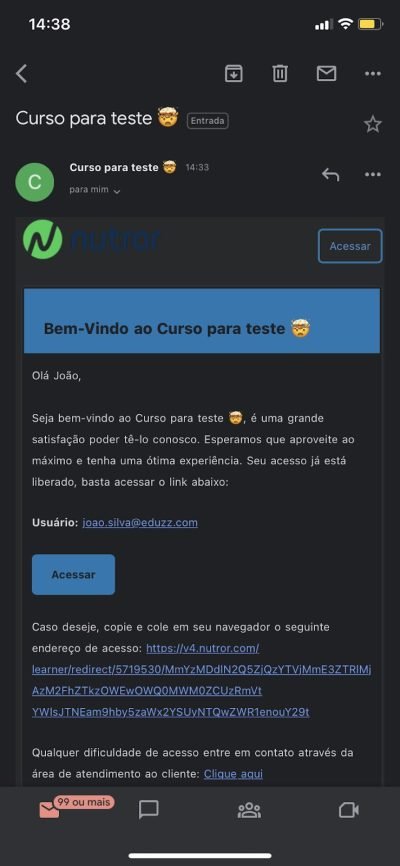
After purchasing, you must access the email address you provided during the product purchase and click the "Access" button.
Step number 2:
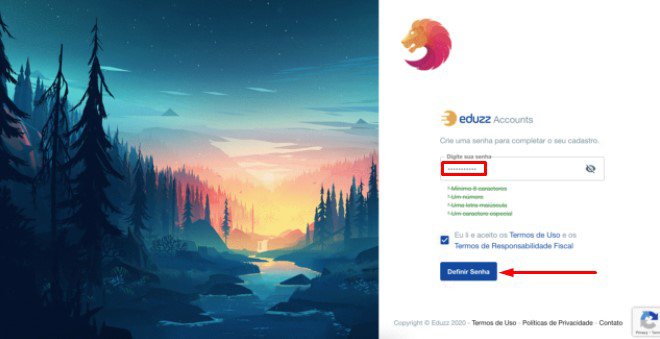
This button will redirect you to a screen where you will set a password to log in to the platform and also accept the necessary terms.
Step number 3:
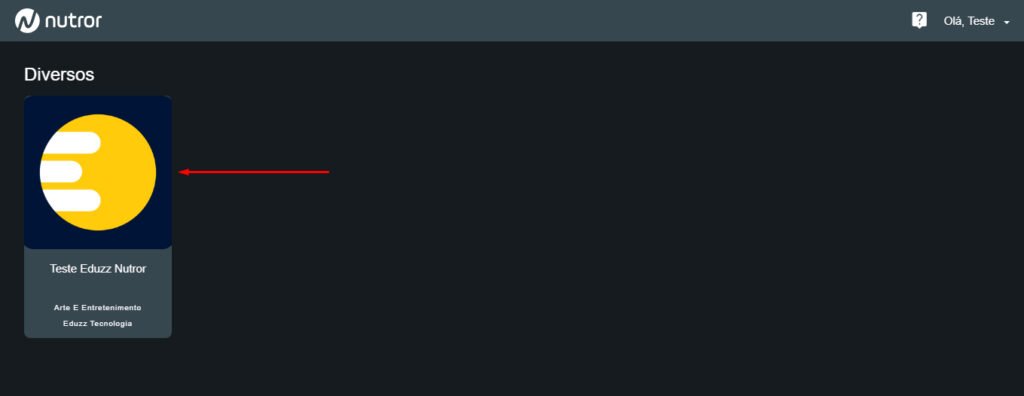
After successfully logging in, your account on the platform will open, and you will be able to view your purchased courses. See the image.
Now, once opened, you will have access to all the modules and lessons that your course offers.
Accessing via the App
The Nutror platform also offers access via mobile device. With the app, you can access all your purchased courses in a very user-friendly way.
The app is available for iOS and Android.
After purchasing your course, you will receive an email, as well as...No access via other devices.
Here's a difference: if you click the "Access within email" option, you'll open your course in your mobile browser, not in the app, so follow the next steps.
Close the email and go directly to the app, where you can log in with the same email and password.
After logging in, you will have access to your courses.
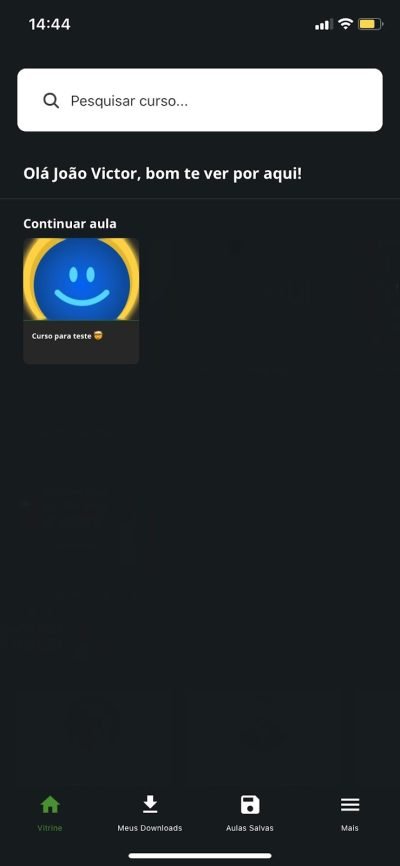
Within the app, you will have some options at the bottom of the screen.
In "Showcase," you will be able to view and access all of your purchased courses.
In "My Downloads," you'll find the content you've downloaded. To find out which content offers offline viewing, check if there's a "Download" option within each lesson.
In "Saved Lessons" you will find the content that you have saved, to watch or consume later, for example.
In "More" you will be able to make changes to your profile, log out of your account, access certificates and other features.